Startup founder uses this one weird trick to build & track traffic from LinkedIn

Jim Wrubel
CEO, Orchestra AI · October 14, 2023
This article reveals a "one weird trick" to generate more traffic to your website from your personal and company LinkedIn page by adding a custom button with a call to action and a referral link to track traffic.
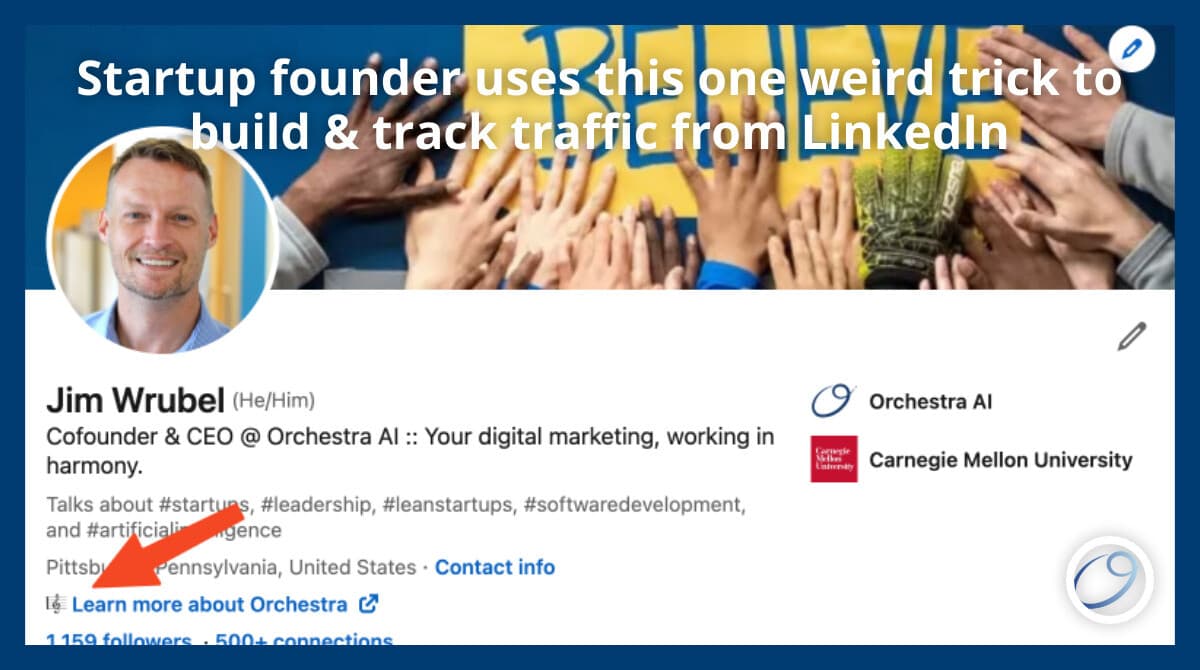
Remember those "one weird trick" ads from the 2000s? They were so prevalent they even have their own Wikipedia page!
This article does have one weird trick you're probably not using. It'll help you generate more traffic to your website from your personal and company LinkedIn page. It'll take you five minutes and (unlike those shady weight loss pills from the original 'one weird trick' ads, this one actually works immediately!
Get A Better CTA On Your Personal LinkedIn Profile
If you actively use your LinkedIn to build connections and awareness for your business, you might have seen that LinkedIn allows you to add a website link as part of your contact info.
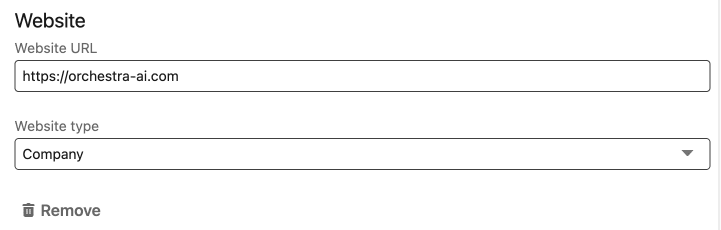
This seems like a great place to add a link to your website, right? But adding it here only shows it when people click the Contact info button on your profile:
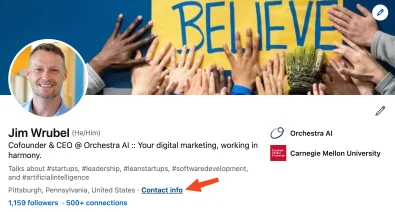
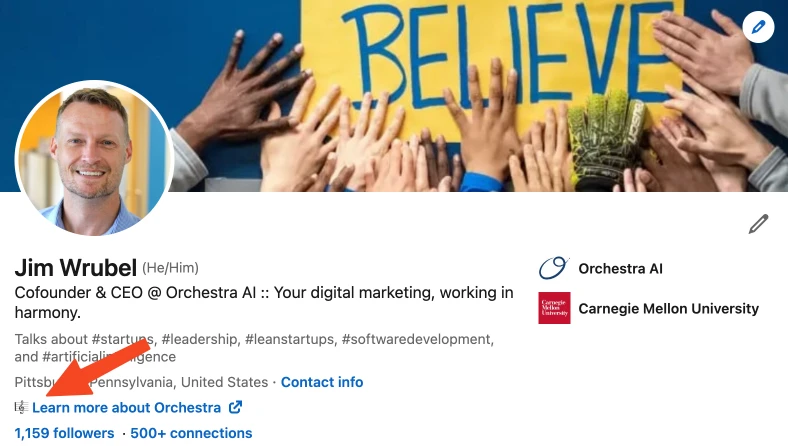
Here's a better way. When you click the Edit icon on your profile (the pencil icon, on the far right below your cover photo), all the way at the bottom there's an option to add a custom button:

This option is sooo much better! Not only does it appear directly on your profile, you can even customize the text with a call to action! Let's go ahead and click that Edit custom button link.
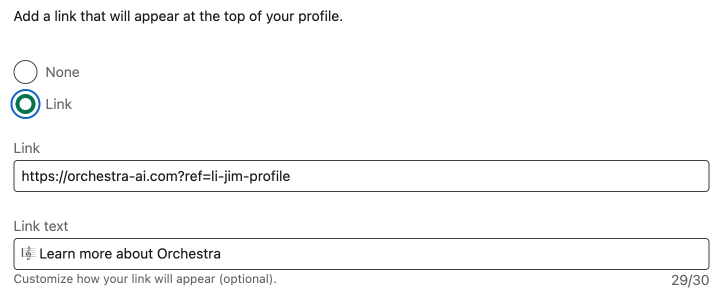
Let's walk through this form. First off, obviously click the Link radio button. You'll only need to use None if you want to delete your custom button (you don't want to do that).
Adding A Ref To Your LinkedIn Custom Button
Now add your website URL in the Link field. But here's the one weird trick. Make sure you add a referral link at the end, so you can track traffic that comes from your custom button. It needs to follow a specific format so that analytics packages can categorize it correctly. For my profile I'm using https://orchestra-ai.com?ref=li-jim-profile . Replace the https://orchestra-ai.com with your own domain, but make sure the very next part is ?ref=. That's a special keyword that analytics packages will recognize and know to categorize as a new referral source (ref in this case is just short for referral). After the equals sign you can put whatever you want, as long as you'll recognize that it came from your LinkedIn page. Here I'm using li (for LinkedIn), my first name (in a larger company you might want to include a surname), and -profile to indicate where it's used. You don't have to follow this convention, but whatever you do, just make sure it's consistent
Customizing Your LinkedIn Call-To-Action (CTA)
This form gives you the ability to customize the button text. If you don't do that, your button will just show the link you included. That's ugly, so let's make a custom CTA.
First off, understand that this is a limited field. LinkedIn only gives you 30 characters to work with, so you've got to be clever. There's some good advice in this article on using terms that convert better and avoiding friction words. Whatever you end up with, make sure you save the first two characters because you're going to want to add an emoji.
If your business doesn't already have a brand emoji, it's time to come up with one because you're going to want to use it here. Emojis generate more engagement and are 60x easier for people to process than text. At Orchestra we use the 'musical score' 🎼 emoji because it resonates with our brand image.
Once you've finished, Click Save, then Save again to close the Edit Contact screen. LinkedIn should refresh to show you the change but if not, refresh your browser to see your new CTA button!
Updating Your Company Page CTA
Although you'll almost certainly get more traffic from your personal page than your company page just because of the way that LinkedIn prioritizes engagement between people, you should still make the same tracking change in your company page. To get started, navigate to the admin section of your company page, and in the left column click Edit Page.
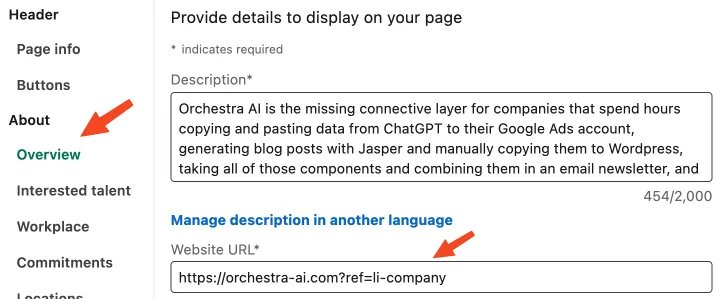
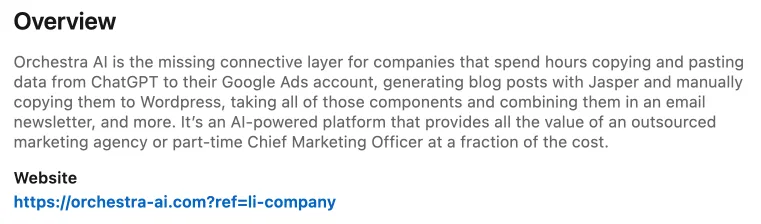
You're going to want to update two places. First, click About -> Overview in the sidebar In the Website URL field, if your company website isn't listed, add it there. Again, we're going to use that ?ref= trick so we can record when someone clicks through, but this time change the value so you know it comes through the company page:
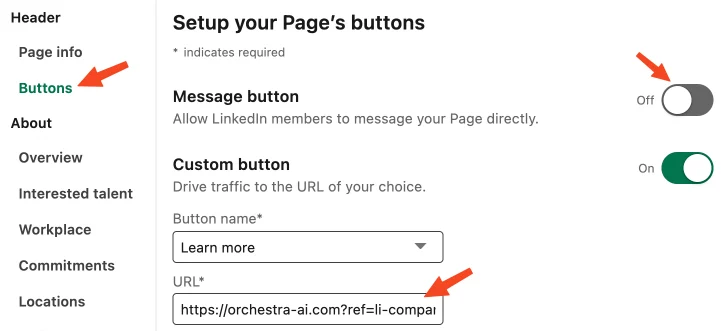
Next, go to Header -> Buttons . This is where you can set up a custom button for your page.
First off - there's a toggle labeled Message button. This is on by default, and if your business offers professional services or consulting you might want to leave this on, because it's a fast way for prospects to get a hold of you. Pretty much everyone else should turn it off, because if it's on, Message is the default contact button and it will hide the button to send users to your website.
Now set up your custom button. Unfortunately here LinkedIn only allows you to use a sepecific set of text, so pick the best option from the dropdown (Orchestra uses Learn More). Then enter your Website URL, again using the ?ref= trick.
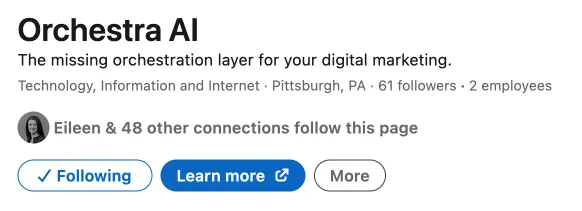
At the bottom you'll see a preview of how your Company page will look. Everything here is saved automatically when you change it, so if it looks good, just click the X to close the screen.
To verify everything looks good, click the View as Member button. You should see your custom button, and if you click About, you'll see the Website link with your ?ref= included.
Checking Your Analytics
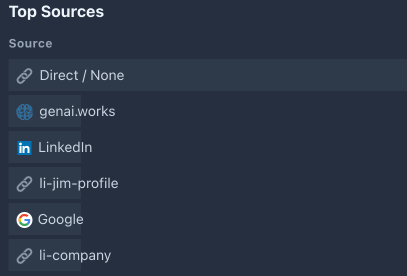
Now let's see how this all looks in your analytics! Test these links by clicking them all - the ones on your profile, and the ones on your company. You'll probably need to wait a few minutes for them to register but after a short wait, go to your analytics site. You should see the clicks tracked separately:
Wrapping Up
If you stuck with me, you made maybe five quick edits and ended up with two strong CTAs on a major source of traffic (LinkedIn), plus you made it possible to know when traffic comes through those channels. Not bad for a few minutes of work!